If you’re reading this, chances are you just dropped a pretty penny on a Custom OPS PC from my shop—hell, maybe you spent hours tweaking every spec: the CPU that crushes your editing workflow, the 4K panel support for your digital signage setup, or the silent fan that doesn’t hum over your office conference room speakers. Let’s be real: custom builds aren’t just boxes of parts. They’re tailored to your exact needs, whether you’re a small business owner using your OPS for in-store digital displays, a content creator running it for a tight home studio, or a school IT guy who needs reliable PCs for every classroom. So the last thing you want is some virus or malware turning your one-of-a-kind machine into a useless paperweight. Customized OPS PC
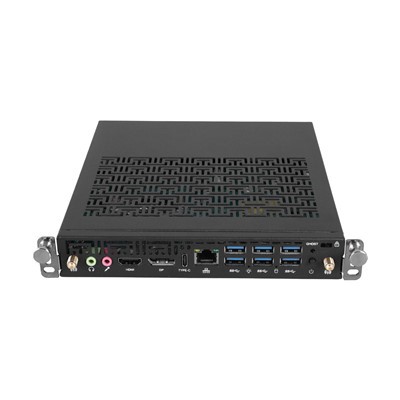
I’ve been building and selling Custom OPS PCs for 7 years now, and I’ve seen every trick in the book when it comes to bad actors messing with people’s setups. Last year, I had a customer— a local café owner—call me panicking at 8 PM on a Friday. Their OPS-powered menu board had been hit with ransomware that locked all their display files, and they couldn’t process weekend takeout orders because their POS was tied to that same PC. It took 3 days to fix, cost them thousands in lost sales, and they still had to replace half their storage because the virus corrupted the backup too. That’s the stuff that keeps me up at night, and it’s exactly why I’m writing this: not to sell you something overpriced, but to give you real, actionable steps to protect your Custom OPS PC without turning it into a tech nightmare.
First off, let’s get one thing straight: off-the-shelf PCs come with basic antivirus stuff, but Custom OPS PCs? They have way more specific uses—they’re not your grandma’s laptop for checking email. If you use your OPS for digital signage, it’s probably set to auto-play menus or ads; if it’s for a warehouse inventory system, it’s running niche software that might not play nice with security tools designed for general use. So one-size-fits-all antivirus is usually garbage for these. I recommend picking an antivirus that specializes in industrial or embedded devices, not just your average Windows Defender. Wait, hold on—don’t go binning Windows Defender entirely, it’s free and does a lot of the heavy lifting if you tweak it right. But pair it with something like Malwarebytes Business Edition or Bitdefender GravityZone if you’re running it for a small business or classroom setup. The key here is that the tool doesn’t hog your OPS’s resources—since custom builds might not have the beefiest RAM or processors, you don’t want a security suite that slows down your display or inventory app to a crawl. I always mention this to every customer when they pick up their build, but 9 times out of 10 they skip the extra security and end up calling me months later.
Next up: software updates. I know, I know—Windows update pops up every time you turn your PC on, you click “remind me later” and forget about it. But for OPS PCs? Updates are non-negotiable. Why? Because most viruses exploit unpatched vulnerabilities in old Windows versions, outdated browser plugins, or even the niche software you’re running. Last month, a graphic designer client of mine used a 2-year-old version of a photo editing plugin on their Custom OPS for their studio setup. A new malware strain targeted that exact plugin, and by the time they noticed, half their client files were encrypted. Fixing that required rolling back to a backup they’d made 6 months prior—lost work, lost revenue, all because they ignored updates. The good news? You can schedule updates for times when you’re not using your OPS. If it’s a digital signage PC that’s only used during business hours, set updates to run at 2 AM when the shop’s closed. If it’s a classroom PC, schedule updates over weekends. And turn on automatic driver updates too—OPS PCs have specific hardware (the embedded board, the display interface, etc.) that needs up-to-date drivers, not just generic Windows drivers. I pre-load most of the drivers for my Custom OPS builds, but I still tell customers to check for new ones every 3 months, especially if they swap out peripherals or upgrade the panel.
Now, let’s talk about something most people overlook with OPS PCs: their network. A lot of small businesses or schools plug their OPS straight into a public Wi-Fi network because it’s easy, but that’s a virus feeding ground. Think about it—if your OPS is on the same Wi-Fi as random laptops, phones, or even other unsecure devices, a virus on one of those can jump over to your OPS PC in seconds. If you can, set up a separate VLAN (virtual local area network) for your Custom OPS devices. That means they’re on their own little network, not connected to the rest of your office or school’s devices. I work with a lot of school districts now, and every one of them sets up a VLAN for their classroom OPS PCs—when a laptop on the main network gets hit with malware, it can’t touch the OPS’s display or inventory system. Even if you’re a small café, you can make a guest Wi-Fi network for customers and keep your OPS on a separate, password-protected network only for your staff. And never, ever plug your OPS PC into a public Wi-Fi network—no exceptions. If you have to take it somewhere for maintenance, use a personal hotspot with a strong password, not a coffee shop’s free Wi-Fi.
Another big one: user permissions. I see way too many people using their Custom OPS PC with an admin account all the time. That’s like giving a stranger the keys to your front door and your safe. If you use an admin account, any virus that gets on your PC has full access to every file, every setting, every peripheral. Instead, create a standard user account for daily use, and only log in as admin when you need to install new software or update drivers. For OPS PCs that run automated tasks (like digital signage), use a dedicated user account that doesn’t have admin rights at all. That way, even if someone tricks the PC into downloading a virus, it can’t make major changes or delete important files. I always set up user permissions for my customers when I deliver their Custom OPS build, but I walk them through how to switch accounts so they don’t get stuck down the line.
Backups. Oh man, backups are the difference between a minor headache and a total disaster. The café owner I mentioned earlier? They had one backup that was on the same PC’s internal hard drive—so when the virus corrupted the main files, it took the backup too. Rule number one for backups: use the 3-2-1 rule. 3 copies of your data, 2 on different types of storage, 1 offsite. For your Custom OPS PC, that means: main files on the OPS’s internal drive, a second copy on an external SSD (since it’s faster than a regular hard drive), and a third copy on a cloud service that’s not tied to the same network as your OPS. I recommend backing up your OPS data once a week, and test your backups every 3 months to make sure they actually work. Last year, a tech guy at a local school called me saying his backups were corrupted and he couldn’t restore them—turns out he’d never tested them, so he lost all the data from his classroom OPS PCs. Don’t be that person. And if your OPS is used for sensitive stuff (like patient data in a small clinic), make sure your cloud backup is encrypted—most good services like Google Workspace or Microsoft 365 do this automatically, but it’s worth checking.
Now, let’s get specific to Custom OPS PCs, because regular PC advice doesn’t always apply here. OPS PCs are embedded, right? They’re built to fit into display screens or kiosks, which means they might have a different BIOS or firmware than a standard desktop. Updating your OPS’s BIOS and firmware is just as important as updating Windows. I always include instructions for updating firmware when I sell a Custom OPS PC, but a lot of customers skip it because it sounds complicated. It’s not—most OEMs (the ones I work with) have a simple utility that lets you update firmware with a single click, no fancy tech skills needed. Firmware updates fix security holes that could let hackers take control of your OPS at the hardware level, which is way harder to catch than a regular virus.
Also, be careful with what you plug into your OPS PC. I’ve had customers plug random USB drives from trade shows or other offices into their OPS, and that’s how viruses get in. USB drives are one of the most common ways malware spreads, because people swap them without thinking. If you need to move files to your Custom OPS PC, use a USB drive that only you use, scan it with your antivirus before plugging it in, and never plug in unknown drives. For OPS PCs that are only used for automated tasks (like digital signage that only plays pre-downloaded files), disable USB ports entirely. I can do that for you when I build your Custom OPS PC, or it’s a simple setting in your BIOS. No random USBs = no USB-borne viruses.
Wait, let’s talk about common myths I hear all the time. Myth 1: “Macs don’t get viruses, so I’m safe.” No, that’s only true for most consumer Macs, but OPS PCs are mostly Windows-based, and even if you have a Mac OPS, malware targets niche industries too. Myth 2: “I don’t download anything, so I can’t get a virus.” Wrong—viruses come from hidden links in emails, outdated plugins, even malicious websites that automatically download stuff without you clicking anything. Myth 3: “Antivirus is enough.” No, security is a layered thing—you need antivirus, updates, good network setup, backups, all of it. One layer won’t keep you safe.
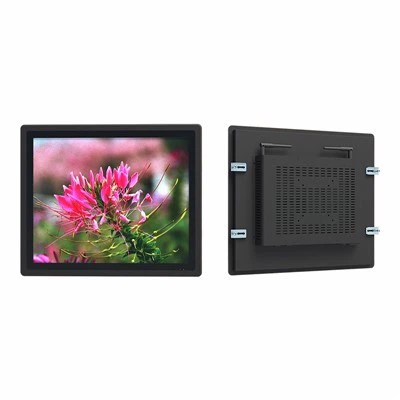
If you’re still with me, that means you actually care about your Custom OPS PC, which is exactly the kind of customer I love working with. Here’s the thing: building a Custom OPS PC is personal. It’s not a pre-built box that the manufacturer cranks out by the thousands—it’s designed for your exact workflow, your exact space, your exact needs. So protecting it shouldn’t be a generic process. If you’re setting up a Custom OPS PC for your business, school, or studio and want to make sure it’s locked down tight, hit me up. I can walk you through setting up security, tweak your antivirus to not hog your OPS’s resources, help you set up backups, or even customize your security settings specifically for how you use your machine. Don’t wait until a virus hits—by then, it’s too late. Reach out whenever you’re ready to talk through your needs, and I’ll help you keep your Custom OPS PC running smooth, safe, and exactly how you need it.
HJS OPS-C REFERENCES
NIST Special Publication 800-82, Guide to Industrial Control Systems (ICS) Security
Microsoft, Secure Windows for Industrial Devices and Embedded Systems
Malwarebytes, 2024 State of Malware Report
Shenzhen HJS Technology Group
Shenzhen HJS Technology Group is one of the most experienced customized ops pc manufacturers and suppliers in China, featured by quality products and good service. Please rest assured to buy CE approved customized ops pc made in China here from our factory. For price consultation, contact us.
Address: F10, Wanhe Technology Building C, No. 7 HuiTong Road, Fenghuang Street, Guangming New District, Shenzhen. China.
E-mail: info@hjs-pc.com
WebSite: https://www.hjs-pc.com/
